

Introduction
If your iPhone feels slower than usual or apps keep acting up, clearing cache might be the quick fix you need. Knowing how to clear cache on iPhone can help free up storage, improve performance, and resolve glitches without deleting important data.
In this guide, you’ll learn everything—from clearing Safari data to managing app cache and optimizing storage across different iPhone models like iPhone 11, 12, 13, 14, 15, and even the latest versions.
What Is Cache and Why Should You Clear It?
Cache is temporary data stored by apps and browsers to speed up performance. While it helps apps load faster, over time it can:
- Take up unnecessary storage
- Cause apps to lag or crash
- Store outdated or corrupted data
Clearing cache is like giving your iPhone a fresh start—without losing your personal files.
How to Clear Cache on iPhone Safari
Safari is usually the biggest cache collector on your iPhone.
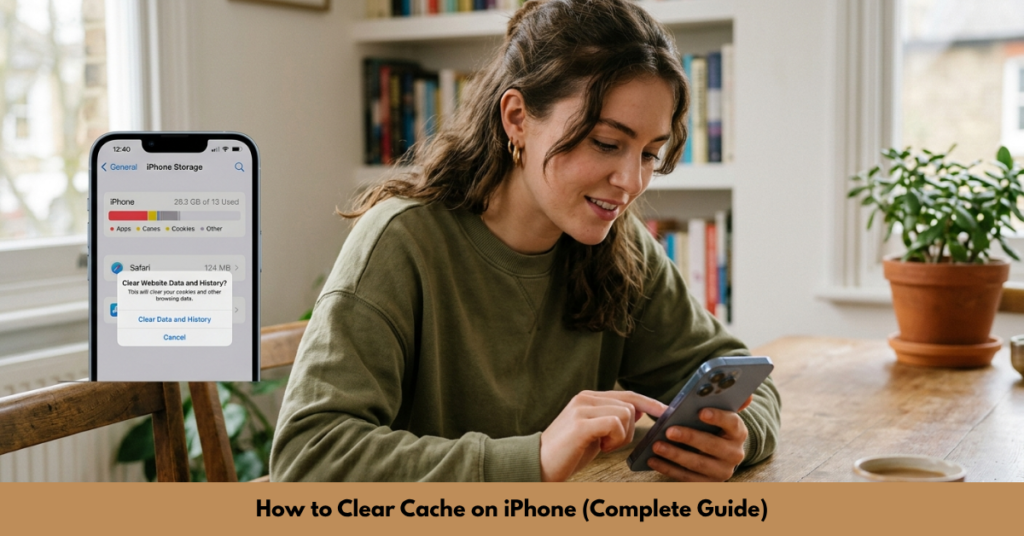
Steps to Clear Safari Cache:
- Open Settings
- Scroll down and tap Safari
- Tap Clear History and Website Data
- Confirm your choice
What Happens Next?
- Browsing history is removed
- Cookies and cached files are deleted
- Saved passwords remain intact
This method is essential if you’re searching for how to clear cache on iPhone Safari effectively.
How to Clear Cache on iPhone Apps
Unlike Android, iPhones don’t have a universal “clear cache” button for all apps. However, there are still effective ways to manage app data.
Method 1: Offload Unused Apps
- Go to Settings
- Tap General → iPhone Storage
- Select an app
- Tap Offload App
Benefit: Keeps documents and data while removing cached files.
Method 2: Delete and Reinstall Apps
- Press and hold the app icon
- Tap Remove App → Delete App
- Reinstall from the App Store
This is the most reliable way if you’re wondering how to clear cache on iPhone for apps.
How to Clear Cache on iPhone Chrome
If you use Chrome instead of Safari:
Steps:
- Open Chrome app
- Tap the three dots (bottom right)
- Select Settings → Privacy
- Tap Clear Browsing Data
- Choose cached images/files
- Confirm
This solves issues related to how to clear cache on iPhone Chrome users often face.
How to Clear Cache on Social Media Apps
Apps like Instagram, Facebook, and TikTok store a lot of cache.
Instagram Cache
- No direct option
- Best method: Delete & reinstall
Facebook Cache
- Clear by reinstalling
- Or offload app in settings
TikTok Cache
- Open TikTok
- Go to Profile → Settings & Privacy
- Tap Free up space
- Clear cache
These steps help if you’re searching for:
- how to clear cache on iPhone Instagram
- how to clear cache on iPhone Facebook
- how to clear cache on iPhone TikTok
Does It Work for All iPhone Models?
Yes. The process is nearly identical across devices, including:
- iPhone 11, 12, 13
- iPhone 14, 15
- Newer models like iPhone 16 and beyond
So whether you’re looking for how to clear cache on iPhone 13 or newer versions, the steps remain mostly the same.
Extra Tips to Keep Your iPhone Running Smoothly
Clearing cache is just one part of optimization. Here are a few bonus tips:
- Restart your iPhone regularly
- Keep iOS updated
- Delete unused apps
- Enable “Offload Unused Apps”
- Clear message attachments
Common Mistakes to Avoid
- Clearing cache too frequently (not always necessary)
- Deleting apps without backing up data
- Confusing cache with important files
Cache removal should improve performance—not create new problems.
FAQs
1. Is it safe to clear cache on iPhone?
Yes, it’s completely safe. It only removes temporary files and doesn’t affect personal data like photos or contacts.
2. How often should I clear cache?
Once every 1–2 months is enough for most users.
3. Will clearing cache delete passwords?
No, unless you specifically choose to remove saved data in browser settings.
4. Why is my iPhone still slow after clearing cache?
You may need to restart your device or update iOS. Storage overload can also be a factor.
5. Is there a one-tap cache cleaner for iPhone?
No official option exists. You must clear cache manually or reinstall apps.
Conclusion
Learning how to clear cache on iPhone is one of the easiest ways to boost performance and fix minor issues. Whether it’s Safari, Chrome, or social media apps, clearing cached data can make your device feel faster and more responsive.
Make it a habit to clean up your iPhone occasionally—it only takes a few minutes but can make a noticeable difference. If your phone still feels sluggish, consider exploring storage management or system updates for even better results.