
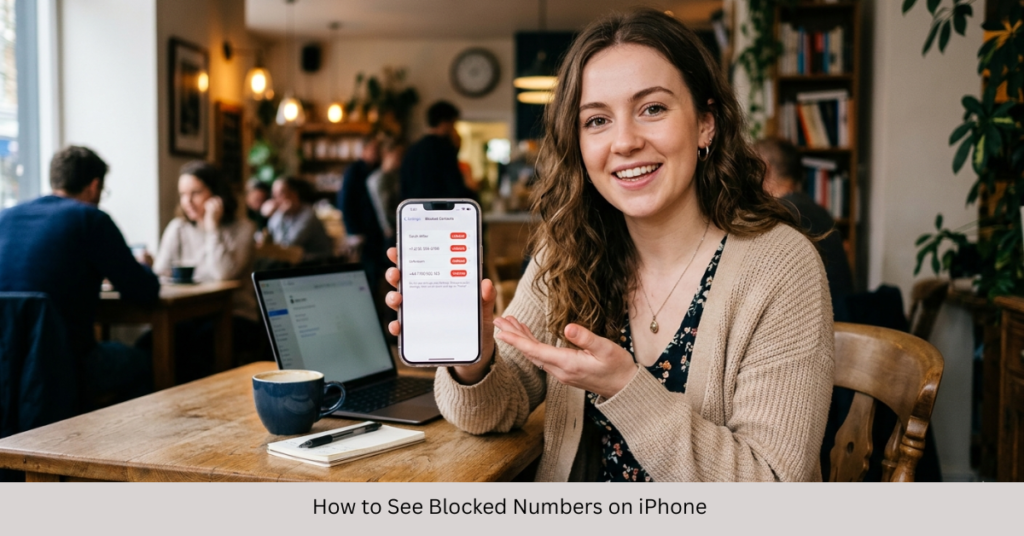

Ever wondered if you accidentally blocked an important contact? It happens more often than you’d think. Knowing how to see blocked numbers on iPhone can save you from missed calls, lost messages, or awkward situations.
Whether you’re using the latest update or an older model, this guide walks you through everything—clearly and simply. From checking blocked contacts to managing them on different iOS versions, you’ll find all the answers here.
Where Are Blocked Numbers Stored on iPhone?
Blocked numbers on an iPhone are stored in your system settings. Apple keeps them organized across different apps like:
- Phone (calls)
- Messages (SMS/iMessage)
- FaceTime
The good news? All blocked contacts are centralized, making them easy to view and manage.
How to See Blocked Numbers on iPhone (Step-by-Step)
Follow these simple steps to view your blocked list:
- Open Settings
- Scroll down and tap Phone
- Tap Blocked Contacts
You’ll now see a complete list of all blocked numbers.
Alternative Method (Messages App)
You can also check blocked contacts through Messages:
- Go to Settings
- Tap Messages
- Select Blocked Contacts
How to See Blocked Numbers on iPhone iOS 18
If you’re using the latest update, the process is almost identical:
- Open Settings
- Tap Apps → Phone
- Select Blocked Contacts
In iOS 18, Apple slightly reorganized menus, but the feature works the same. If you’re searching for how to see blocked numbers on iphone ios 18, this is the exact method.
Viewing Blocked Numbers Across Different iPhone Models
No matter which device you use, the steps remain consistent. Here’s what you need to know:
iPhone 16, 16 Pro, and Newer Models (2025)
- Uses the latest iOS interface
- Blocked contacts are under Settings → Phone
iPhone 15, 14, and 13 Series
- Same navigation as above
- Works for Pro, Pro Max, and standard versions
iPhone 12, 11, and Older Models (Including SE & iPhone 8)
- Slightly older UI but same steps
- Still accessible via Settings → Phone → Blocked Contacts
So whether you’re searching for how to see blocked numbers on iphone 15, iphone 14 pro max, or even iphone 8, the process is universal.
How to See Blocked Numbers on iPhone Messages
If you’re specifically looking for blocked texts:
- Open Settings
- Tap Messages
- Tap Blocked Contacts
This shows numbers blocked from sending SMS or iMessages.
How to Unblock a Number on iPhone
Once you find the blocked list, unblocking is easy:
Method 1: Swipe to Unblock
- Swipe left on the number
- Tap Unblock
Method 2: Edit List
- Tap Edit (top right)
- Tap the red minus (-) icon
- Tap Unblock
Why You Might Not See a Blocked Number
Sometimes users think a number is blocked—but it’s not listed. Here are possible reasons:
- The number was deleted from contacts
- Call silencing (not blocking) is enabled
- Third-party apps are filtering calls
Make sure you check all relevant settings before assuming.
Tips to Manage Blocked Contacts Better
- Regularly review your blocked list
- Double-check before blocking unknown numbers
- Use contact names instead of numbers for clarity
- Combine with spam filters for better protection
FAQs
How do I see blocked numbers on iPhone quickly?
Go to Settings → Phone → Blocked Contacts. This is the fastest way.
Can I see missed calls from blocked numbers?
No, blocked calls won’t appear in your call history.
Does blocking a number block messages too?
Yes, it blocks calls, SMS, and FaceTime simultaneously.
Is the method different for iPhone 16 or iOS 18?
No major difference. The steps remain almost the same with slight menu changes.
Can I recover messages from blocked numbers?
No, messages sent while a number was blocked are not delivered.
Conclusion
Learning how to see blocked numbers on iPhone is simple but incredibly useful. Whether you’re using the latest iOS update or an older device, the process remains consistent and user-friendly.
Take a moment to check your blocked list—you might find a number you didn’t mean to block. And if you found this guide helpful, consider exploring more tips to get the most out of your iPhone.