
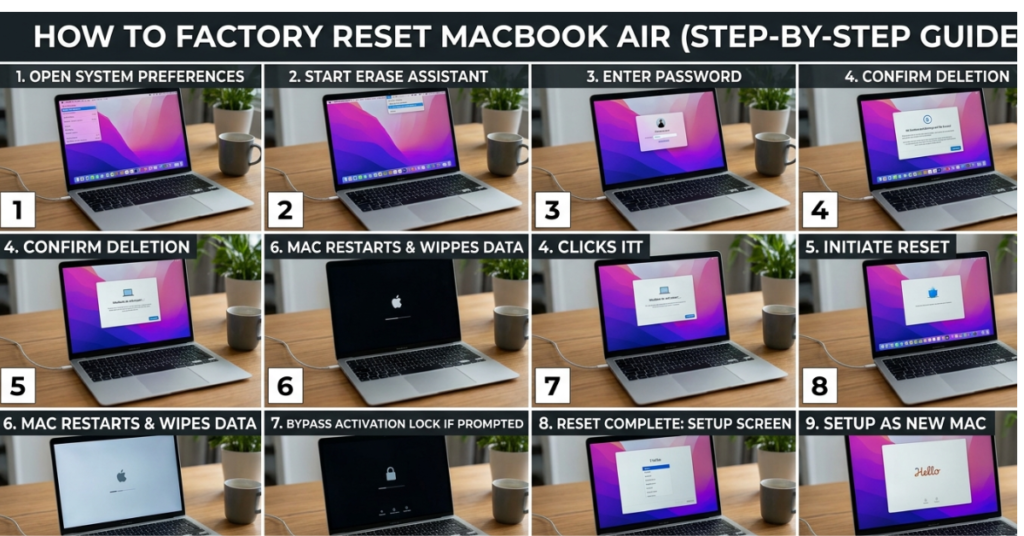

If your laptop is running slow, you’re planning to sell it, or you just want a fresh start, learning how to factory reset MacBook Air is one of the most useful skills you can have. The process might sound technical, but it’s actually straightforward when broken down properly.
In this guide, I’ll walk you through everything—from backing up your data to resetting your device—even if you don’t have a password. Whether you’re using an older model or a newer one, you’ll find clear steps that work.
What Does Factory Reset Mean?
A factory reset wipes your MacBook Air completely and restores it to its original settings—just like when you first took it out of the box.
This process will:
- Delete all personal files
- Remove apps and settings
- Reinstall macOS
Before You Reset: Important Checklist
Before jumping into the steps, take a few minutes to prepare:
1. Backup Your Data
Use Time Machine or an external drive to save important files.
2. Sign Out of Accounts
- Apple ID
- iCloud
- iMessage
3. Deauthorize iTunes (if applicable)
This prevents issues with account limits later.
How to Factory Reset MacBook Air (Step-by-Step)
Follow these steps if you have access to your Mac:
Step 1: Restart in Recovery Mode
- Turn off your MacBook Air
- Turn it back on and immediately press:
Command (⌘) + R
This opens macOS Recovery.
Step 2: Erase the Disk
- Select Disk Utility
- Click Continue
- Choose your main drive (usually “Macintosh HD”)
- Click Erase
Use these settings:
- Format: APFS (for newer macOS)
- Scheme: GUID Partition Map
Step 3: Reinstall macOS
- Exit Disk Utility
- Select Reinstall macOS
- Follow on-screen instructions
Your Mac will download and install a fresh copy of the operating system.
How to Factory Reset MacBook Air Without Password
If you’re locked out, don’t worry—you can still reset your device.
Method: Use Recovery Mode
- Turn off your Mac
- Press Command (⌘) + R while turning it on
- Access Disk Utility and erase the drive
This method works for:
- how to factory reset macbook air without logging in
- how to factory reset macbook air without apple id password
Note: If Activation Lock is enabled, you may still need your Apple ID.
How to Factory Reset MacBook Air with Buttons
There’s no dedicated “reset button,” but the keyboard shortcut acts like one:
- Hold Command (⌘) + R during startup
- This launches Recovery Mode
This is often what people mean by resetting “with buttons.”
Model-Specific Guidance
The process is mostly the same across models, but here are some quick notes:
Older Models (2011–2015)
Applies to:
- how to factory reset macbook air 2011
- how to factory reset macbook air 2012
- how to factory reset macbook air 2013
- how to factory reset macbook air 2014
- how to factory reset macbook air 2015
Use Mac OS Extended (Journaled) format if APFS isn’t available.
Mid Models (2016–2019)
Includes:
- how to factory reset macbook air 2016
- how to factory reset macbook air 2017
- how to factory reset macbook air 2018
- how to factory reset macbook air 2019
APFS is recommended for better performance.
Newer Models (2020 and later)
Covers:
- how to factory reset macbook air 2020
If using macOS Monterey or later, you may see “Erase Assistant”, which simplifies the process.
macOS Version Differences
macOS Monterey and Later
- Go to System Settings
- Select Erase All Content and Settings
This is the easiest method for newer systems.
macOS High Sierra and Earlier
- Use Recovery Mode
- Disk Utility + Reinstall macOS
This applies to:
- how to factory reset macbook air high sierra
Common Mistakes to Avoid
- Skipping backup (you’ll lose everything)
- Not signing out of Apple ID
- Choosing the wrong disk format
- Interrupting macOS installation
FAQs
1. How long does it take to factory reset a MacBook Air?
Usually 30 minutes to 1 hour, depending on your internet speed and model.
2. Can I reset my MacBook Air without Apple ID?
Yes, but if Activation Lock is enabled, you’ll need the original Apple ID credentials.
3. Is factory reset safe?
Yes, it’s completely safe and often improves performance.
4. Will factory reset remove viruses?
Yes, it wipes everything, including malware.
5. What if Recovery Mode doesn’t work?
Try Internet Recovery:
- Press Option + Command + R at startup
6. Does this work for 13-inch models?
Yes, the process is identical for all sizes, including how to factory reset macbook air 13.
Also Read: Mount Everest in Which Country?
Conclusion
Now you know exactly how to factory reset MacBook Air, whether you have full access or not. The process may seem intimidating at first, but once you follow the steps—backup, erase, reinstall—it becomes surprisingly simple.
If you’re selling your device, fixing performance issues, or starting fresh, a factory reset is one of the best things you can do. Take your time, follow the steps carefully, and your MacBook Air will be as good as new.