
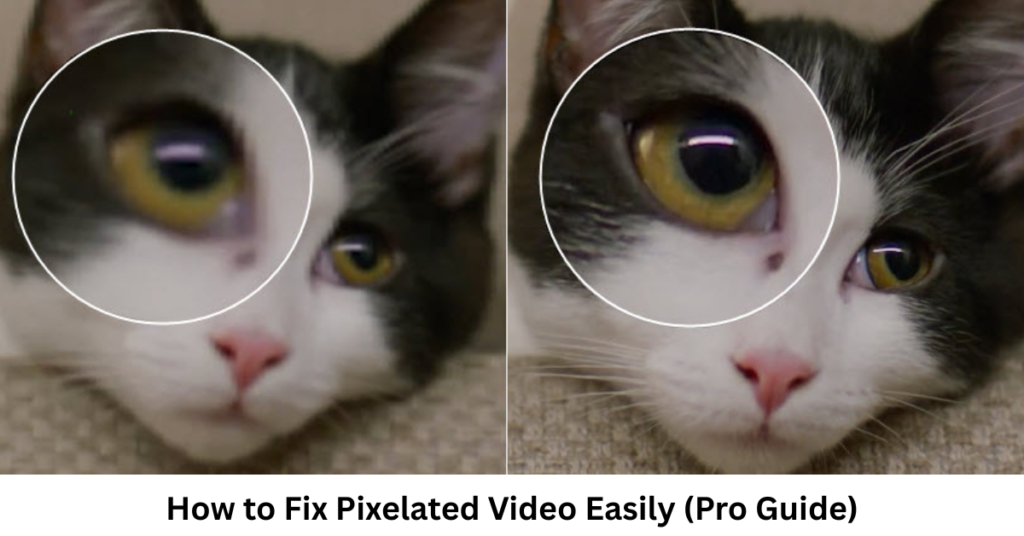

Pixelated videos can be frustrating, especially when you’ve captured an important moment or edited a project that suddenly looks blurry and blocky. If you’ve ever searched for how to fix pixelated video, you’re definitely not alone. Whether it’s due to low resolution, compression issues, or export settings, pixelation can make even great content look unprofessional.
The good news? In most cases, you can improve or significantly reduce pixelation using the right tools and techniques. In this guide, we’ll break down practical methods, including how to fix pixelated video in Premiere Pro, along with simple fixes anyone can try.
Why Do Videos Become Pixelated?
Before jumping into solutions, it helps to understand the problem. Pixelation usually happens when video quality drops due to:
- Low recording resolution (like 240p or 360p)
- Heavy compression (WhatsApp, social media uploads, etc.)
- Zooming in too much on footage
- Incorrect export settings
- Poor internet streaming quality
Once you understand the cause, fixing the issue becomes much easier.
How to Fix Pixelated Video (Quick & Easy Methods)
Let’s start with simple solutions that don’t require advanced editing skills.
1. Use Video Enhancement Tools
Modern video players and editors often include enhancement features that can slightly improve clarity.
Try:
- AI video enhancers
- Upscaling tools (1080p or 4K upscaling)
- Sharpness adjustment filters
These tools work by filling in missing details, making the video look smoother.
2. Adjust Resolution Settings
Sometimes the issue isn’t the video itself but how it’s being played.
- Set playback resolution to HD
- Avoid fullscreen stretching of low-quality clips
- Re-export the video in higher resolution if possible
This simple step can instantly improve appearance.
3. Improve Sharpness and Contrast
Editing apps allow you to refine visual clarity.
Increase:
- Sharpness (but don’t overdo it)
- Contrast for better depth
- Clarity or texture settings
These adjustments won’t fully restore lost detail but can reduce the “blocky” look.
How to Fix Pixelated Video in Premiere Pro
If you’re working professionally, Adobe Premiere Pro gives you powerful tools to repair and enhance video quality. Let’s explore how to fix pixelated video in Premiere Pro step by step.
1. Use the “Unsharp Mask” Effect
This is one of the most effective tools in Premiere Pro.
Steps:
- Go to Effects Panel
- Search “Unsharp Mask”
- Drag it onto your clip
- Adjust Amount, Radius, and Threshold
This helps restore edge clarity and reduces blur caused by pixelation.
2. Scale Footage Correctly
Pixelation often happens when footage is stretched.
- Right-click clip → Set to Frame Size
- Avoid manually zooming beyond original resolution
- Use Sequence settings matching your footage resolution
This ensures your video stays crisp and proportional.
3. Apply Lumetri Color Corrections
Color correction can visually improve quality.
Adjust:
- Sharpening (Lightly)
- Highlights and shadows
- White balance
A well-balanced image looks clearer even if resolution is low.
4. Use Detail-Preserving Upscale
This is a powerful built-in effect in Premiere Pro.
- Apply “Detail-Preserving Upscale”
- Increase scale moderately (110%–150%)
- Enable noise reduction if needed
It intelligently improves low-resolution clips without making them worse.
Advanced Tips to Fix Pixelated Video Quality
If basic fixes don’t work, try these advanced techniques:
AI Upscaling Software
AI tools can reconstruct missing pixels using machine learning. These are especially useful for old or heavily compressed videos.
Reduce Noise Before Sharpening
Always clean the video first. Noise reduction helps avoid making pixelation worse when sharpening.
Re-export with Better Settings
Use:
- H.264 codec
- High bitrate (10–20 Mbps for 1080p)
- Constant Frame Rate
Export settings matter more than most people realize.
Common Mistakes to Avoid
Even when trying to fix pixelation, people often make things worse. Avoid:
- Over-sharpening (creates harsh edges)
- Excessive zooming
- Low bitrate exports
- Editing already compressed videos repeatedly
Less is more when it comes to restoration.
FAQs About Fixing Pixelated Video
1. Can pixelated video be fully restored?
Not always. You can improve it significantly, but lost detail cannot be completely recovered.
2. What is the best software for fixing pixelated video?
Adobe Premiere Pro is one of the best, along with AI-based upscaling tools.
3. Why does my video look pixelated after uploading?
Platforms like WhatsApp, Instagram, and YouTube compress videos to save bandwidth.
4. Does converting video format help reduce pixelation?
Yes, exporting in a higher bitrate and better codec can improve clarity.
5. Is Premiere Pro good for fixing low-quality videos?
Yes, learning how to fix pixelated video in Premiere Pro gives you professional-level control over sharpening, scaling, and enhancement.
Conclusion
Pixelated videos can be annoying, but they’re not always permanent. By understanding the cause and applying the right techniques, you can noticeably improve video quality. Whether you’re using simple enhancement tools or mastering how to fix pixelated video in Premiere Pro, the key is balance—enhance without over-processing.
If you regularly work with videos, learning these techniques will save you time and help your content look more professional and polished.