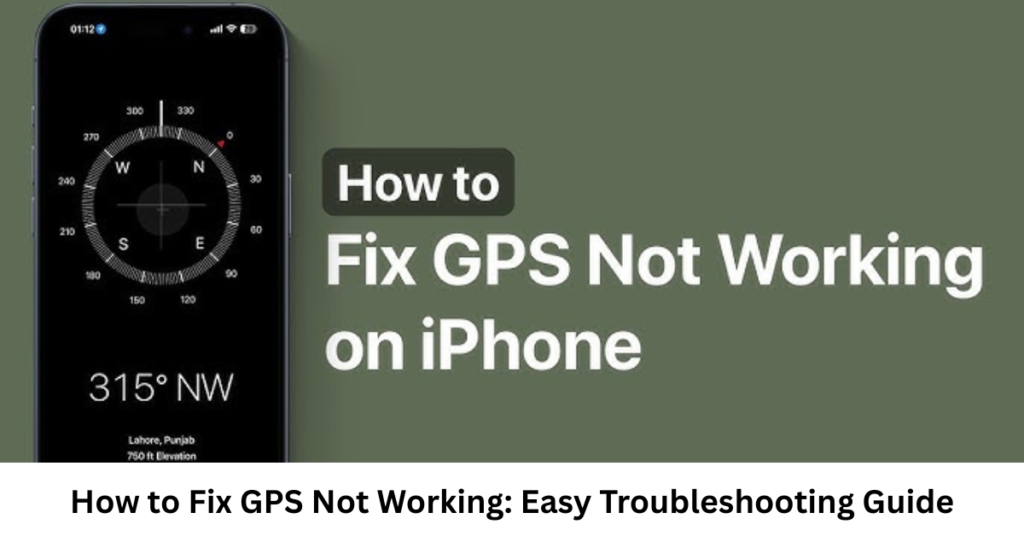

If your map keeps showing the wrong location or your navigation app just refuses to work, you’re not alone. Many users struggle with GPS issues daily, and it can be frustrating—especially when you need directions urgently.
In this guide on how to fix GPS not working, we’ll walk you through simple, practical solutions that actually work on both Android and iPhone. Most of the time, the issue is not serious and can be fixed in a few minutes with the right settings or quick adjustments.
Let’s break it down step by step so you can get your GPS working smoothly again.
Why GPS Stops Working on Your Phone
Before fixing the issue, it helps to understand what causes it. GPS problems usually happen due to:
- Weak or blocked satellite signals
- Location services being turned off
- Software glitches or outdated apps
- Battery saver mode interfering with GPS
- Incorrect date and time settings
- Physical obstructions (buildings, tunnels, indoor areas)
Understanding these reasons makes troubleshooting much easier.
How to Fix GPS Not Working on Android & iPhone
Let’s go through the most effective solutions you can try right away.
1. Turn Location Services ON
This is the most common issue.
- Android: Settings → Location → Turn ON
- iPhone: Settings → Privacy → Location Services → Enable
Make sure your apps also have permission to access location.
2. Switch GPS Mode to High Accuracy
On Android devices, GPS works better when accuracy is improved:
- Go to Location settings
- Tap “Mode” or “Location Method”
- Select High Accuracy
This allows your phone to use Wi-Fi, mobile data, and GPS together.
3. Restart Your Device
A simple restart can fix temporary glitches that affect GPS performance. It refreshes system processes and reconnects satellite signals.
4. Turn Airplane Mode ON and OFF
This resets network signals:
- Turn Airplane Mode ON for 10–15 seconds
- Then turn it OFF
This helps re-establish a fresh connection with GPS satellites.
5. Check Date and Time Settings
Incorrect time settings can confuse location services.
- Set time to Automatic
- Enable “Use network-provided time”
6. Update Google Maps or Navigation Apps
Outdated apps often cause location errors.
- Go to Play Store or App Store
- Update Google Maps, Waze, or any navigation app you use
7. Disable Battery Saver Mode
Battery optimization can restrict GPS performance.
- Turn off Battery Saver or Low Power Mode
- Allow apps to run in the background
8. Clear App Cache (Android Only)
If the issue is app-specific:
- Settings → Apps → Google Maps
- Tap Storage → Clear Cache
9. Reset Location Settings
If nothing works, reset location settings:
- Android: Reset Network Settings
- iPhone: Reset Location & Privacy
This restores default GPS behavior.
Advanced Fixes for Persistent GPS Issues
If you’re still searching for how to fix gps not working, try these deeper solutions:
- Update your phone’s operating system
- Check for hardware damage (rare but possible)
- Test GPS in an open outdoor area
- Use a GPS testing app to diagnose signal strength
Sometimes environmental factors like tall buildings or weather conditions can also affect accuracy.
FAQs
Why is my GPS not working properly?
It can be due to weak signals, disabled location settings, outdated apps, or software glitches.
How to fix GPS not working on Android phones?
Enable location services, set high accuracy mode, restart your phone, and update your apps.
Why does GPS work slowly sometimes?
Slow GPS is usually caused by weak satellite connection or poor internet signal.
Does airplane mode affect GPS?
Yes, but turning it on and off can actually help reset GPS signals.
Can a phone case affect GPS signal?
Yes, thick or metallic cases may slightly block signals in some devices.
Conclusion
Fixing GPS issues is usually simple once you know where to look. From enabling location services to resetting network settings, most solutions are quick and easy to apply.
If you’re still wondering how to fix gps not working, start with basic steps like restarting your phone and checking settings before moving to advanced fixes.
With the right adjustments, your GPS should be back to normal, helping you navigate smoothly without any stress.